HTTP Connector
Download data from any publicly accessible URL. Connect to raw files, APIs, and web resources directly.
Download data from any publicly accessible URL. Connect to raw files, APIs, and web resources directly.
Setup Instructions
1. Navigate to Data Integrations
Go to the Data Integrations tab in your flow.
2. Select HTTP Integration
Click Select an Integration, type HTTP in the search, and click Connect.
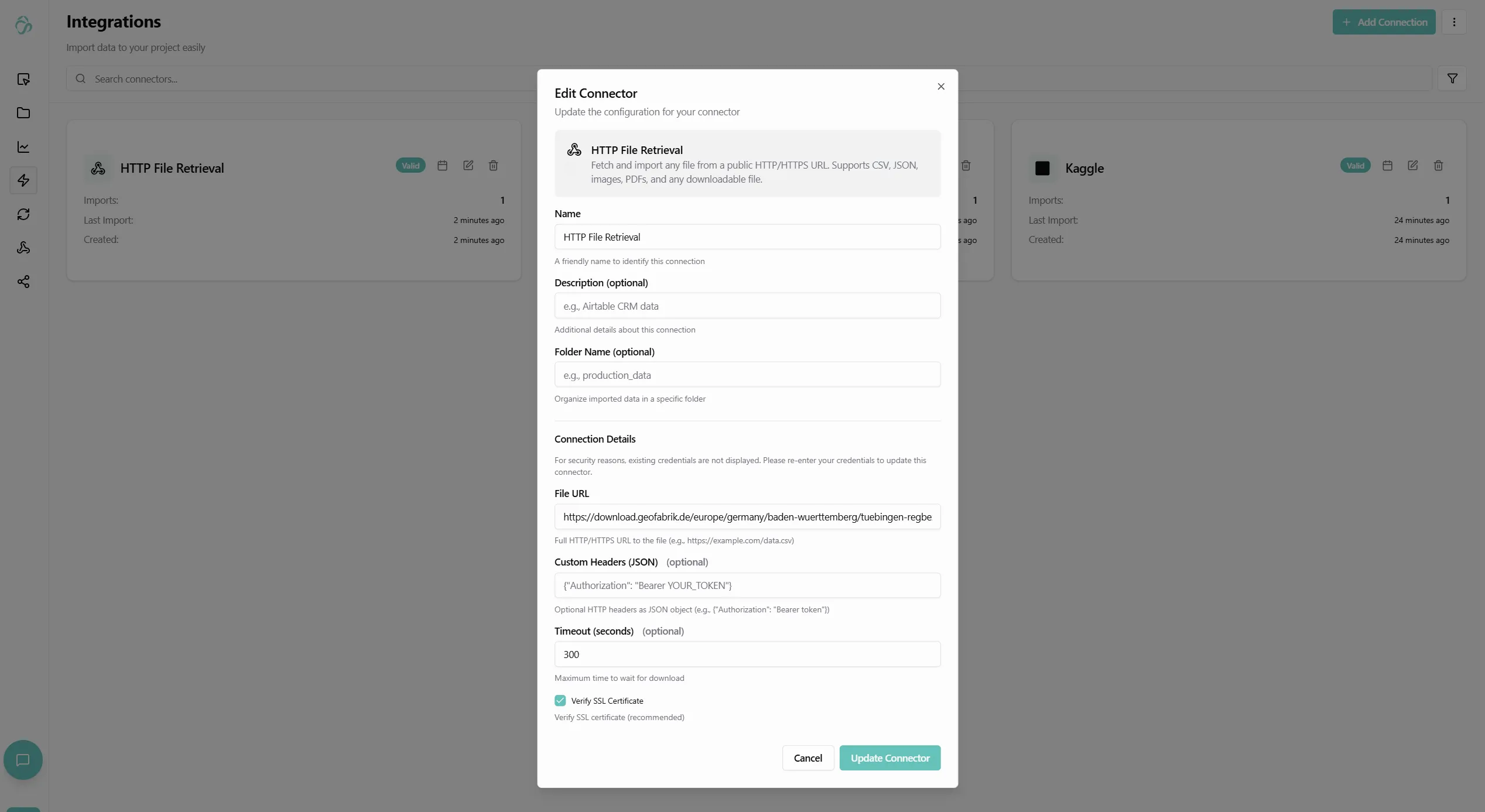
3. Configure the Connector
Back in the connector setup, fill in:
- Connector Name: Give your connector a descriptive name (e.g., "Titanic Dataset")
- URL: The full URL to the file or resource you want to download
- Headers (Optional): Add custom HTTP headers if needed for authentication or other purposes
- Folder (Optional): Select a destination folder in the file manager
- If not specified, data will be stored in the root directory
4. Find Your Data URL
There are several ways to get data URLs:
From GitHub (Raw Files):
- Navigate to a file in a public GitHub repository
- Click the Raw button in the upper right corner
- Copy the URL from your browser
Example: https://raw.githubusercontent.com/datasciencedojo/datasets/refs/heads/master/titanic.csv
From Other Sources:
- Direct download links from data repositories
- Public API endpoints that return data
- Cloud storage public URLs (S3, Google Cloud Storage, etc.)
- Any publicly accessible file URL
5. Optional: Add Headers
If the URL requires authentication or special headers:
Common Header Examples:
- Authorization:
Bearer your-token-here(for API authentication) - Accept:
application/json(specify response format) - User-Agent:
YourApp/1.0(identify your application)
Headers should be added in key-value format:
Authorization: Bearer abc123xyz
Accept: application/json
6. Create the Connection
After filling in all details, click Create Connection.
The system will:
- Fetch the data from the specified URL
- Download the file to your file manager
- Begin the initial data synchronization
7. Monitor Sync Status
- Navigate to Data Synchronization to see the import progress
- The connector will download the file from the URL
- Once complete, the file will be available for use
8. Access Your Data
- Once the sync is complete, go to File Manager
- Navigate to the folder you specified (or root directory)
- You'll see the downloaded file
- Click on the file to preview the data
- The data is now ready to use in your AI pipelines and flows
Use Cases
Common HTTP Connector Use Cases:
-
GitHub Raw Files
- Download datasets from GitHub repositories
- Access CSV, JSON, or other data files
- Example:
https://raw.githubusercontent.com/username/repo/main/data.csv
-
Public APIs
- Connect to REST APIs that return data
- Download JSON or XML responses
- Use with API endpoints that provide data dumps
-
Cloud Storage
- Access publicly shared files from S3, GCS, or Azure Blob Storage
- Download files with public URLs
- Sync data from shared cloud folders
-
Data Repositories
- Download from UCI Machine Learning Repository
- Access datasets from government open data portals
- Connect to research data repositories
-
Regular File Updates
- Set up sync jobs to periodically fetch updated files
- Monitor data sources that update regularly
- Keep your datasets current with external sources
Best Practices
- Test URLs First: Make sure the URL is publicly accessible before creating the connector
- Use HTTPS: Prefer HTTPS URLs for secure data transfer
- Check File Sizes: Large files may take time to download
- Set Up Sync Jobs: For data that updates regularly, create a sync job to keep it current
- Handle Authentication: If the URL requires authentication, use the Headers field
- Verify Data Format: Ensure the downloaded file format is supported (CSV, JSON, Parquet, etc.)
Example URLs
Here are some example public datasets you can try:
- Titanic Dataset:
https://raw.githubusercontent.com/datasciencedojo/datasets/refs/heads/master/titanic.csv - Iris Dataset:
https://raw.githubusercontent.com/mwaskom/seaborn-data/master/iris.csv - Tips Dataset:
https://raw.githubusercontent.com/mwaskom/seaborn-data/master/tips.csv
Simply copy any of these URLs into the HTTP connector to start downloading data!