Stripe Connector
Use Stripe data in dashboards or AI pipelines. Sync payments, customers, invoices, and subscriptions automatically.
Connect your Stripe account to AI pipelines and sync payments, customers, invoices, and subscriptions automatically.
Setup Instructions
1. Navigate to Data Integrations
Go to one of your flows, then click on the Data Integrations tab and select Select an Integration.
2. Select Stripe Integration
Search for Stripe in the list and click Connect.
3. Get Your API Key from Stripe
To connect Stripe, you need a Secret API key:
- In Stripe, open the Developers section — the easiest way is to use the search bar at the top and search for "keys"
- Click on API Keys
- Under Standard keys, find the Secret key row and click Reveal live key (or use a restricted key if you prefer to limit access)
- Copy the key
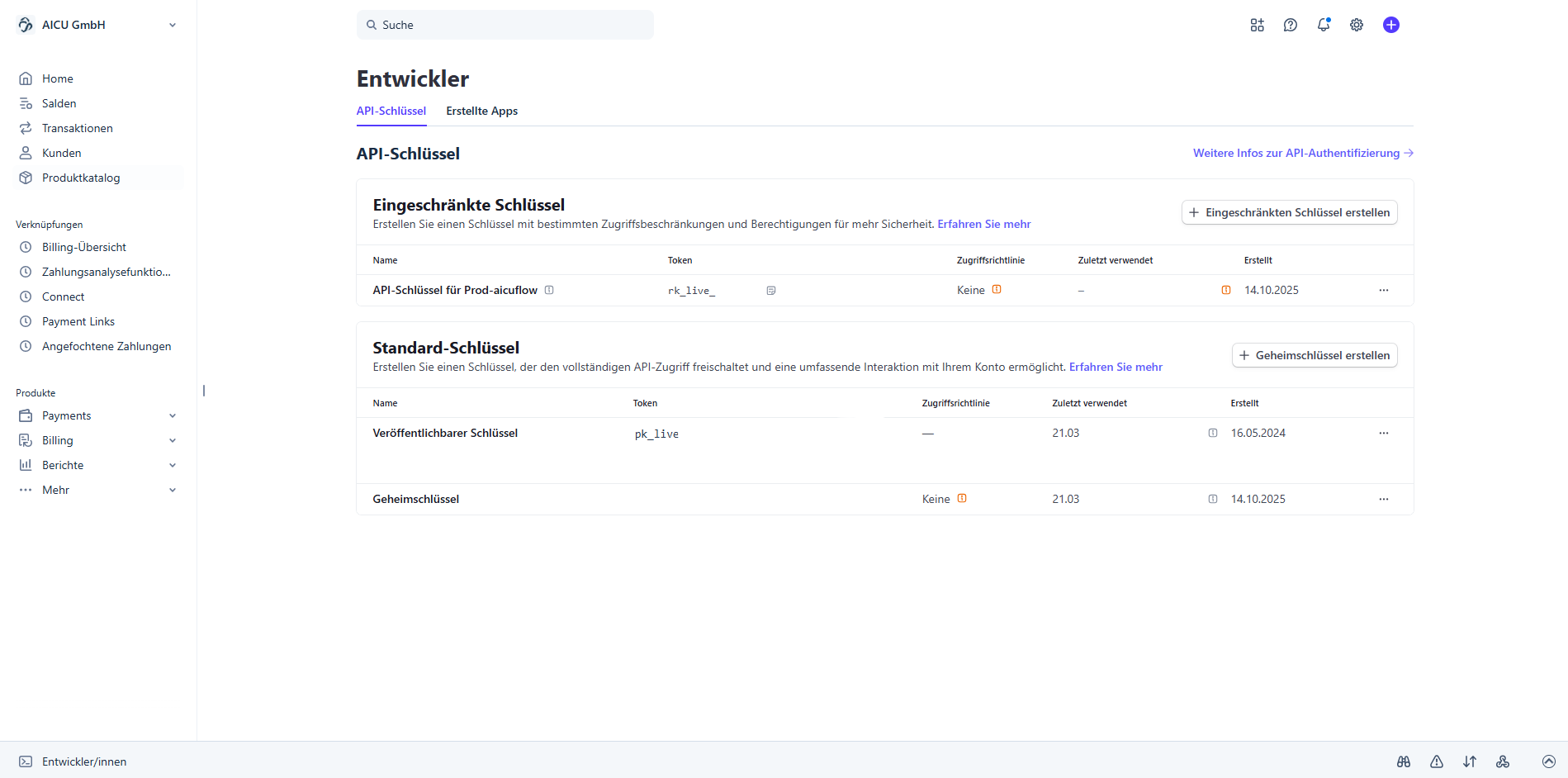
Tip: If you want to limit what the connector can access, create a Restricted Key instead. Give it read-only access to the Stripe resources you want to sync (e.g., Customers, Charges, Invoices, Subscriptions).
4. Configure the Connector
Back in the connector setup, fill in the following fields:
- Connector Name: Give your connector a descriptive name (e.g., "Stripe Payments")
- API Key: Paste the secret key you copied from Stripe
Note: After you create the connector, you won't be able to view the API key again for security reasons. You can always update it if needed.
5. Create a Sync Job (Optional)
To automatically keep your Stripe data up to date, set up a sync job:
- Navigate to Data Synchronization and click the calendar icon
- Click Create Sync Job
- Select the Stripe connector you just created from the dropdown
- Give the sync job a descriptive name
- Choose a Sync Interval:
- Every 3 hours — suitable for most use cases
- Every minute — for near real-time needs (use cautiously)
- Custom — set your own schedule
- Click Save to activate the sync job
6. Monitor and Access Your Data
Check Import Status:
Navigate to Data Synchronization to monitor your import. You'll see whether the import succeeded or failed.
View Your Imported Data:
- Once the sync completes, go to File Manager (Data Management)
- Navigate to the folder where your data was stored
- Click any file to preview the payment data
- All records from your Stripe account will be available for use in your AI pipelines and dashboards
Important Notes:
- On every sync, a new version of your data is created
- Use a Secret key or a Restricted key with read access — publishable keys will not work
- For production environments, prefer a Restricted key scoped to only the resources you need